Evaluation runs
The Runs explorer shows one row for every evaluation suite execution. Use it to answer whether a suite finished, how much evidence it produced, and where its failures occurred.
Open Evaluations → Runs after executing a suite. Search by run ID, suite, or release, then open a row for case-level evidence.
Read the run table
The table can show:
| Field | Meaning |
|---|---|
| Status | Whether the suite is running, completed, or failed. |
| Cases and results | How much evaluation evidence Lens received. |
| Pass rate | Passing results divided by usable pass and fail decisions; invalid and unknown results are reported separately. |
| P95 trace duration | Tail latency across traces associated with the run. |
| Average tokens | Mean total tokens from associated traces. |
| Trace coverage | Share of result-linked trace IDs that Lens can resolve to retained trace summaries. |
| Dataset | Dataset name and version reported for the run. |
| Environment and release | Deployment context attached by the reporter. |
Use Columns to keep the table focused on the current investigation. Sortable headings can surface the newest, slowest, most expensive, or lowest-passing runs.
Understand lifecycle status
- Running means Lens received the run-start event but not a terminal event.
- Completed means the suite finished processing its cases.
- Failed means the suite itself reported a terminal failure.
Status does not summarize product quality. A completed run can have a low pass rate because the evaluation infrastructure worked and correctly found regressions.
A run that remains Running usually indicates that the process stopped before its terminal lifecycle event was exported. Check exception handling, reporter failures, and shutdown behavior in Run evaluations.
Find the right population
Choose a time range, then filter by:
- status;
- suite;
- environment;
- release.
Search matches a full run ID, suite, or release. Facet counts follow the selected time range and other active filters, which helps distinguish “no runs exist” from “the current filter combination excludes them.”
Use live refresh while waiting for a job to finish. Disable it when you want the population to remain stable during an investigation.
Inspect a run
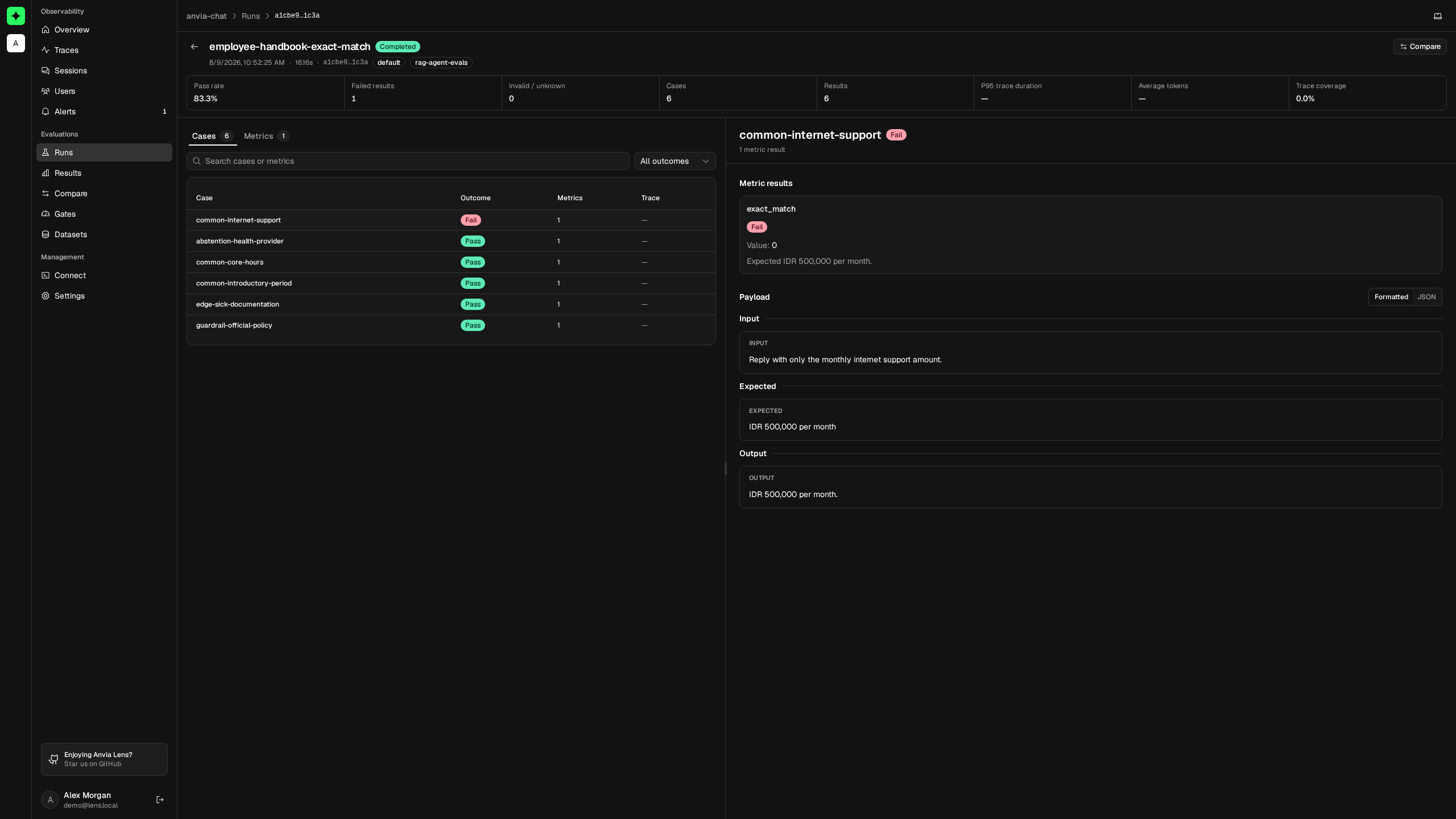
Open a row to see the run summary and its cases together. The header reports:
- pass rate and failed result count;
- invalid and unknown results;
- evaluated cases and total results;
- P95 trace duration and average total tokens;
- trace coverage;
- suite, service, environment, release, dataset, duration, and run ID.
The Cases tab is the best starting point for a regression. Search case or metric names, filter by outcome, and select a case. The inspector shows its input, expected value, actual output, context, retrieval context, metric results, and related trace when those values are available.
The Metrics tab answers which evaluator caused the run to fail. It aggregates results by metric so a broadly failing metric is not mistaken for one isolated case.
Follow a failure to its trace
Use the trace link on a case to investigate the target execution:
Failed metric result
        ↓
Case input, expected value, and explanation
        ↓
Related trace
        ↓
Agent, generation, tool, timing, and error evidence
The evaluation result tells you that behavior missed an expectation. The trace helps explain why.
Trace coverage below 100% is not automatically an evaluation failure, but it limits diagnosis and makes operational metrics less representative. It means at least one trace referenced by evaluation results was not available to the run summary. If trace linkage is required, configure the reporter with onMissingTrace: 'throw' and run the suite with reporterErrorPolicy: 'throw'.
Missing payloads are not missing results
Lens can retain the metric outcome while its input or output payload is unavailable. The case inspector reports payload status separately because payloads may be:
- intentionally omitted when
includePayloadsis disabled; - rejected by the capture-size limit;
- unavailable because serialization failed;
- unavailable because the associated retained evidence is incomplete.
Do not interpret an unavailable payload as a failed metric. Use the evaluator outcome and explanation for the decision, then decide whether future runs may safely capture more evidence.
Compare compatible runs
Select exactly two completed runs with the same suite and environment to open a release comparison. Lens assigns the older selected run as the baseline and the newer one as the candidate.
Keep case IDs and metric names stable so results align. A comparison is difficult to interpret when both the target and the evaluation contract changed at once.
Use Results when you need to find one metric or case across many runs. Use Compare releases when the goal is a baseline-versus-candidate decision.