Playground
Use the Playground to run an Anvia agent and inspect the work it performs as it happens. It combines the conversation, reasoning, tool activity, approvals, human questions, response metrics, and trace links in one development view.
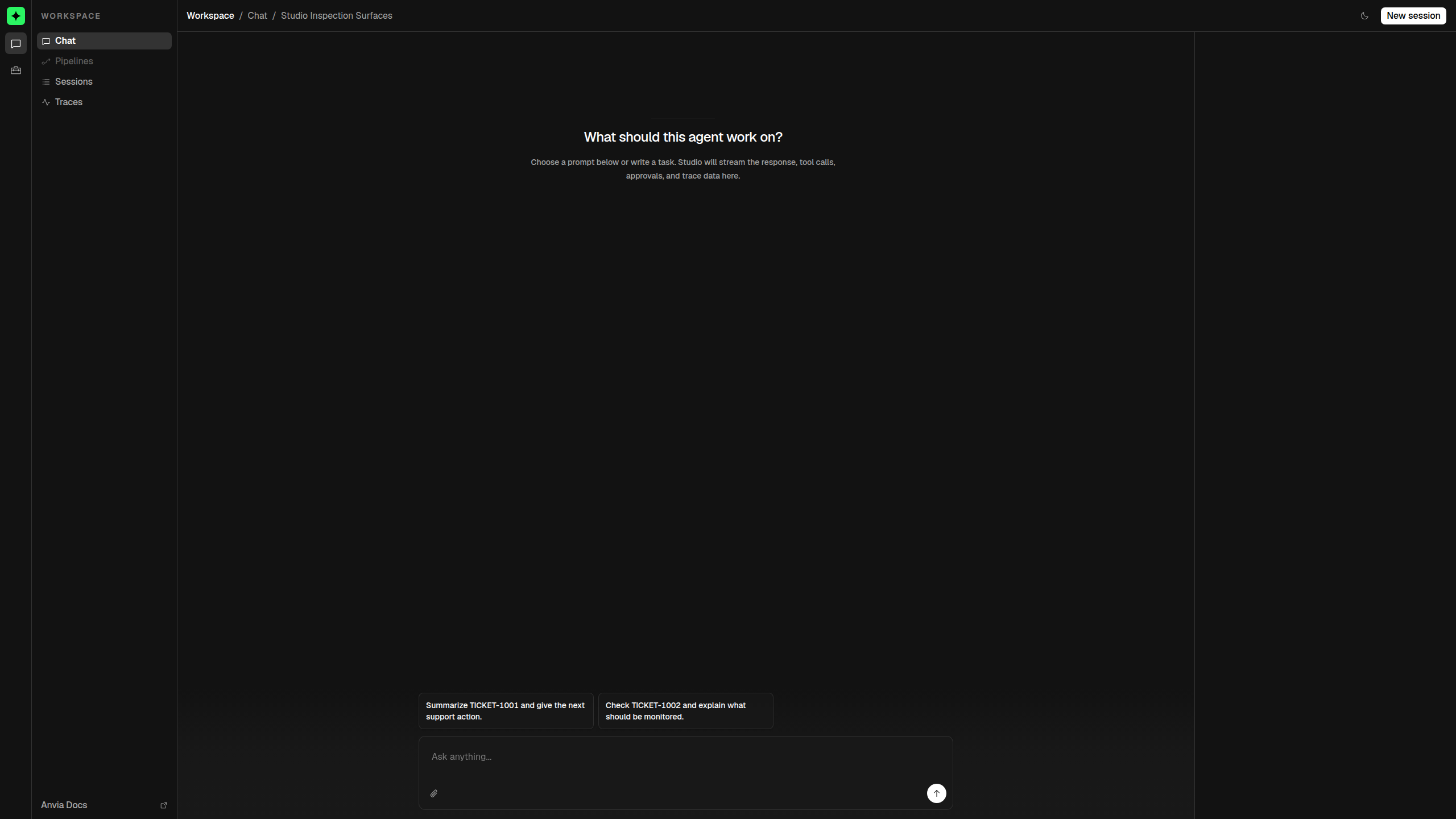
The Playground is designed for the short feedback loop you use while building an agent:
- Select an agent and, when configured, a model.
- Send a prompt or attach test input.
- Watch the response and tool activity stream into the transcript.
- Resolve approvals or answer questions without leaving the run.
- Open the resulting trace when you need more detail.
- Adjust the agent and run it again.
What appears in the transcript
Studio does not reduce a run to its final text. It renders each useful event in order:
| Event | What the Playground shows |
|---|---|
| Assistant text | The response as it streams, rendered as Markdown. |
| Reasoning | A separate reasoning entry when the model emits visible reasoning deltas. |
| Tool call | The tool name and expandable input. |
| Tool result | The returned output on the matching tool call. |
| Subagent activity | Child-agent responses, reasoning, and tool events nested under the parent tool. |
| Approval | The reason for the approval and controls to approve or reject it. |
| Human question | Choices, custom input, and progress through multi-question requests. |
| Final response | Copy controls, available token and duration metrics, and a link to its trace. |
| Error | A visible assistant error instead of a silently interrupted transcript. |
Tool entries collapse after they finish, keeping the conversation readable while preserving their input and output for inspection.
Composer
The message composer adapts to the selected agent:
- Quick prompts appear before the first message when you configure them for that agent.
- Attachments send images or documents as multimodal user content.
- Model selection appears when Studio has a model catalog for the selected agent.
- Agent selection appears when the Studio instance contains more than one agent.
Press Enter to run the prompt or Shift+Enter to insert a new line. A prompt may contain text, attachments, or both.
While a response is streaming, the send action becomes a stop action. Stopping aborts the active stream and marks pending approvals or questions as cancelled.
Sessions
Studio enables an in-memory session store by default. The first prompt in a new chat creates a session; later prompts continue it. The transcript, run status, logs, and trace references remain available until the Studio process exits.
Use a persistent store when you need conversations to survive a restart. Session storage and inspection are covered separately from the Playground because they affect more than the current chat.
Next steps
- Run an agent to follow one run from registration to trace.
- Models and attachments to test provider routing and multimodal input.
- Approvals and questions to add human-in-the-loop controls.