Knowledge
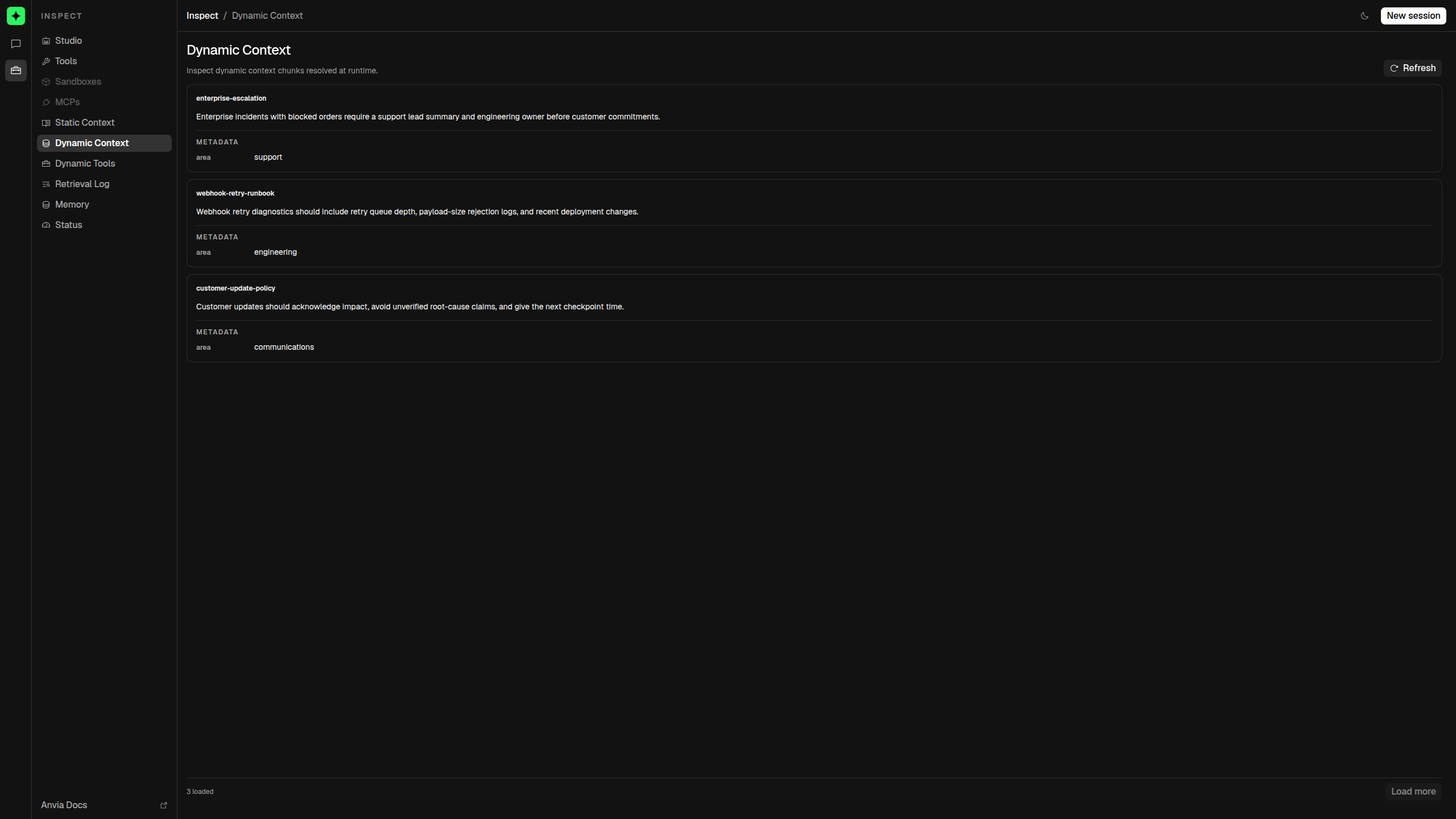
Studio's Knowledge workspace explains what information and dynamically selected capabilities an agent can receive. It combines configuration inspection with trace-backed evidence, so you can distinguish what is registered from what a model actually saw during a run.
Open http://localhost:4021/ui/knowledge. Studio starts on Static Context and provides separate views for Dynamic Context, Dynamic Tools, and Retrieval Log.
Knowledge is read-only
Studio browses registered sources and recorded generation inputs. It does not add, edit, remove, embed, or re-index documents and tools. Keep ingestion and index maintenance in application code or background workflows.
Choose the right view
| Question | View |
|---|---|
| What short, always-available documents are configured? | Static context |
| What chunks can this registered index expose? | Dynamic context |
| Which tool definitions are stored in the dynamic index? | Dynamic tools |
| What documents and tools reached a recorded model generation? | Retrieval evidence |
The first three views inspect configuration or browseable source contents. They do not prove that a particular item reached the model. The Retrieval Log is the evidence view for a specific recorded generation.
A complete inspectable agent
import { createVectorContext } from '@anvia/core/agent';
const agent = new Agent({
    id: 'knowledge-ops',
    model: model,
    instructions: 'Use the available operational knowledge and tools.',
    context: [
        { id: 'enterprise-escalation', text: 'Escalate blocked enterprise orders to the support lead.' },
        createVectorContext({
            store: knowledgeIndex,
            model: embeddingModel,
            topK: 3,
            minScore: 0.7
        }),
    ],
    tools: [toolIndex],
});
new Studio([agent]).start({ port: 4021 });
Configure a tool index's topK and minScore when calling createToolIndex({ ... }). Studio enables the Knowledge workspace when at least one registered agent has static context, a vector context, or a tool index. If several agents or stores are present, source selectors keep their contents separate.
For document ingestion, embeddings, and vector stores, start with Anvia SDK Knowledges. For retrieval behavior and policy, see Dynamic context and Dynamic tools.
A practical debugging loop
- Browse the relevant source to confirm the expected item exists and is inspectable.
- Run a representative prompt in the Playground.
- Open Retrieval Log and find the generation for that prompt.
- Compare its documents and tool names with the expected source contents.
- Open the linked trace when you need the complete generation input, output, timing, and metadata.
If an item exists in the source but is absent from the generation, investigate the query text, embeddings, topK, minScore, and metadata filter. If the correct item reached the generation but the answer is wrong, inspect the prompt and model response rather than changing ingestion first.